5 tips for creating a calm bedroom with an organised bedside table
Tip 1. Keep visible cables to a minimum
Loose cables quickly create visual clutter. Even one charger hanging over the edge of your bedside table can make the space feel untidy.
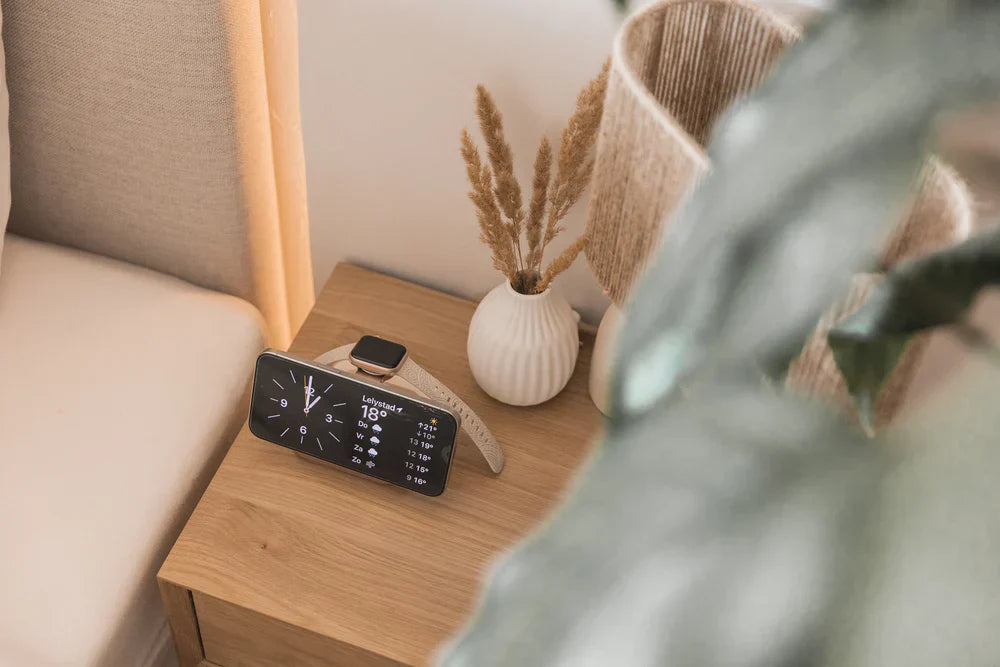
Choose one dedicated charging spot instead of several loose cables. A magnetic wireless charger keeps your phone neatly in place and prevents cables from shifting or falling to the floor.
Tip 2. Combine multiple devices into one solution
Many people charge several devices overnight, such as a smartphone, earbuds and a smartwatch. This often means multiple plugs and cables.
By choosing one charging station for multiple devices, you instantly create a more organised set-up. Everything has its place and your bedside table stays tidy. In households with both Apple and Samsung devices, this approach reduces cable clutter and brings a sense of calm to the space.
Tip 3. Use your phone as a subtle clock instead of a separate device
Rather than placing a separate alarm clock on your bedside table, use your smartphone as a minimal clock display. This saves space and removes the need for extra devices.
How to set up StandBy mode on your iPhone
StandBy is available on iPhones from the iPhone XR onwards, provided they are running iOS 17 or later.
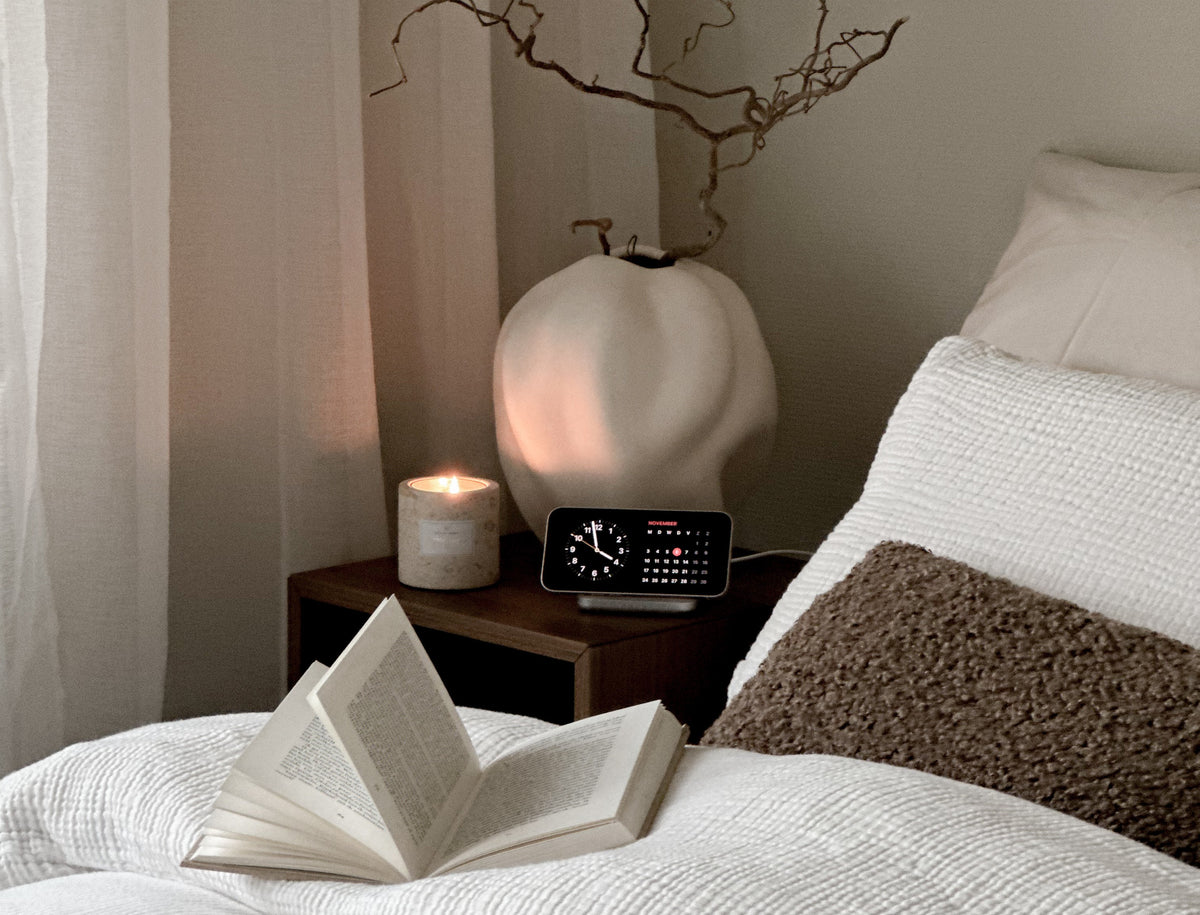
On models with an Always-On display, such as the iPhone 14 Pro, iPhone 14 Pro Max, iPhone 15 Pro and newer models, the clock remains visible without touching the screen. On other supported models, you will need to tap the screen to activate it.
When you place your iPhone horizontally on a charger, it automatically transforms into a smart display.Looking for a clean charging solution? Discover our iPhone wireless chargers designed for your bedside table.
Follow these steps:
Check your software
Go to Settings > General > Software Update and make sure your device is running iOS 17 or later.
Turn on StandBy
Go to Settings > StandBy and enable the feature.
Place your iPhone horizontally on a charger
StandBy works when your phone is charging, positioned horizontally and locked.
Choose your display
Swipe between a digital clock, analogue clock, calendar, photos or widgets such as weather and battery status.
Enable Night Mode
In a dark room, StandBy automatically switches to a red-toned display. This is easier on your eyes and less disruptive during the night.
Android user?
You can also create a calm clock display on your bedside table with a Samsung Galaxy or another Android phone. Discover our Samsung wireless chargers designed to keep your bedside table organised and cable-free. Using another Android device? Explore our Android wireless chargers for a clean and minimal charging set-up.
Option 1: Use Always-On Display
Many Samsung Galaxy models support Always-On Display, which shows a minimal clock while your phone is charging or locked.
Always-On Display is available on the Samsung Galaxy S20, S21, S22, S23 and S24 series, the Galaxy Z Fold 3, 4 and 5, the Galaxy Z Flip 3, 4 and 5, and the Galaxy A33, A34, A53, A54 and A73.
You can activate it via:
Settings > Lock screen > Always-On Display.
Google Pixel users have similar functionality. The Pixel 10 automatically shows a large clock display when placed horizontally while charging.
Option 2: Use a clock app on Samsung or Android
If you prefer a larger horizontal clock display while your phone is charging, you can install a dedicated clock app on your Samsung or other Android device.
Good options include:
- Flip Clock: World Clock
- Always On AMOLED
- Night Clock
- DIGI Clock Widget
These apps work best when your phone is charging, positioned horizontally on a stand and kept in a fixed position.
Tip 4. Choose soft materials and neutral colours
Calm is also reflected in design. Choose accessories with subtle finishes such as aluminium or matte materials and avoid bright LED lights or bold colours.
Refined design and high-quality materials reduce visual distractions and support a clean, organised look. The more streamlined the design, the less distraction in the evening and the easier it is for your mind to relax.
Tip 5. Use apps that help you put your phone down earlier
An organised bedside table helps, but true rest begins with less screen time in the evening.
If you use an Apple iPhone, you can set a fixed bedtime and limit notifications through Screen Time. On a Samsung Galaxy or other Android device, Digital Wellbeing allows you to set app limits and schedule focus time.
For additional support, apps available on both Apple and Samsung devices such as Forest can help reduce scrolling, One Sec can interrupt impulsive app use, and Calm or Headspace can help you end your day with a short relaxation session.
By giving your phone a fixed place and a clear function, you prevent endless scrolling in bed and turn your bedside table into a space for rest rather than distraction.
Why an organised bedside table improves your sleep
Visual clutter can subconsciously cause stress, while a minimal environment helps your body and mind relax more quickly.
By reducing cables and combining devices, you create a bedside table that feels calm and functional. Use your phone intentionally as a clock rather than a source of distraction.
A restful bedroom is built on structure and consistent routines. Explore our Bedroom solutions designed to create a calm and organised space. Often, it comes down to small choices, such as how and where you charge your phone.